You'll need Sauro's address. Your invite email gives your organization's own, with its short name at the end, such as https://mcp.sauro.ai/harbor-coffee. A connector added with it reaches that organization only.
If you work with more than one team on Sauro, use the main address instead. It reaches every team you're on, and your assistant works in one team per chat (see working with more than one organization):
https://mcp.sauro.ai/mcpSauro is invite-only, so your admin has to add you before you can sign in. When you sign in, Sauro emails you a six-digit code. Not invited yet? Apply to join the beta.
If you get stuck, save getting_started.md (right-click, then Save link as) and drop it into a chat with your assistant. It checks whether Sauro is connected, walks you through adding it if not, and then hands you to Sauro coach.
How to connect
Pick your assistant to jump to its steps. If a button has moved since we wrote this, look in its settings for "Connectors", "Apps" or "Plugins". Sauro's address is all you need.
Claude
Claude lets anyone add Sauro on the Free, Pro, Max and Ultra plans. On a Team or Enterprise plan, an owner adds it once for everybody (see below).
- Open claude.ai in a browser and go to Customize, then Connectors.
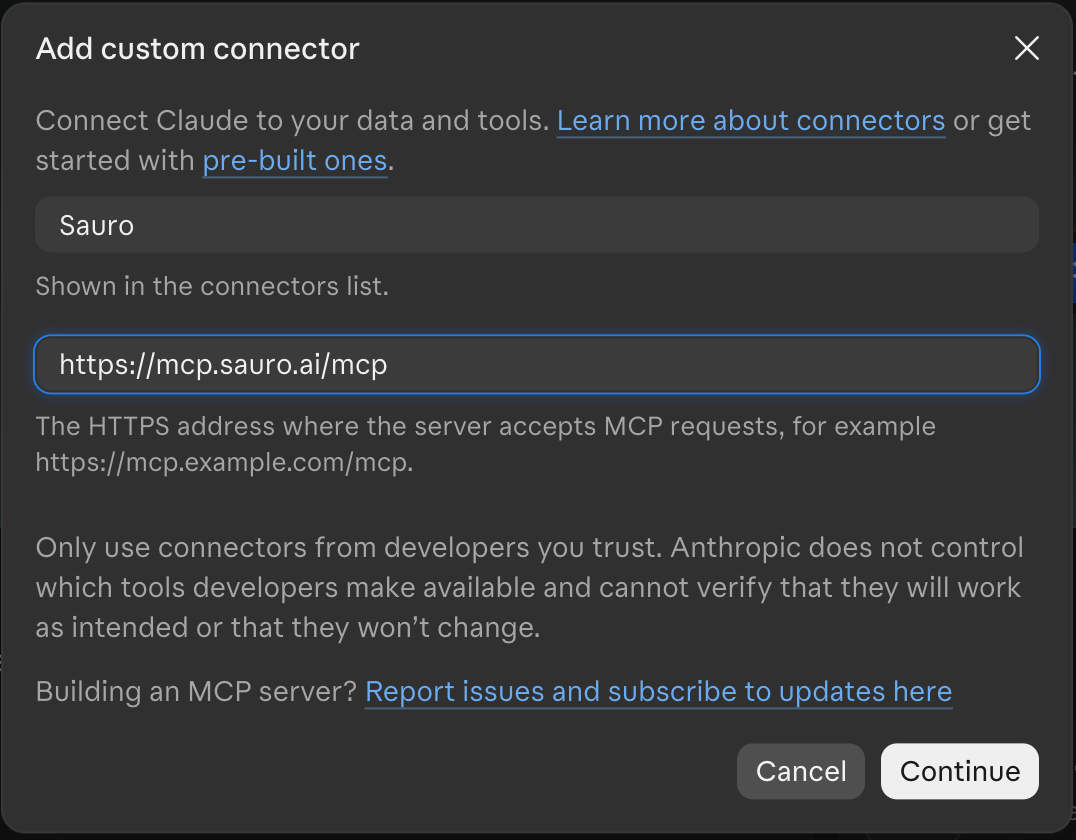
- Click Add custom connector.
- Name it the way your invite says, such as Sauro Harbor Coffee (or just Sauro for the main address), and paste the address into the server URL box.
- Click Continue. If Claude doesn't open Sauro's sign-in page by itself, click Connect next to Sauro.
- Sign in with your work email and the six-digit code Sauro emails you.
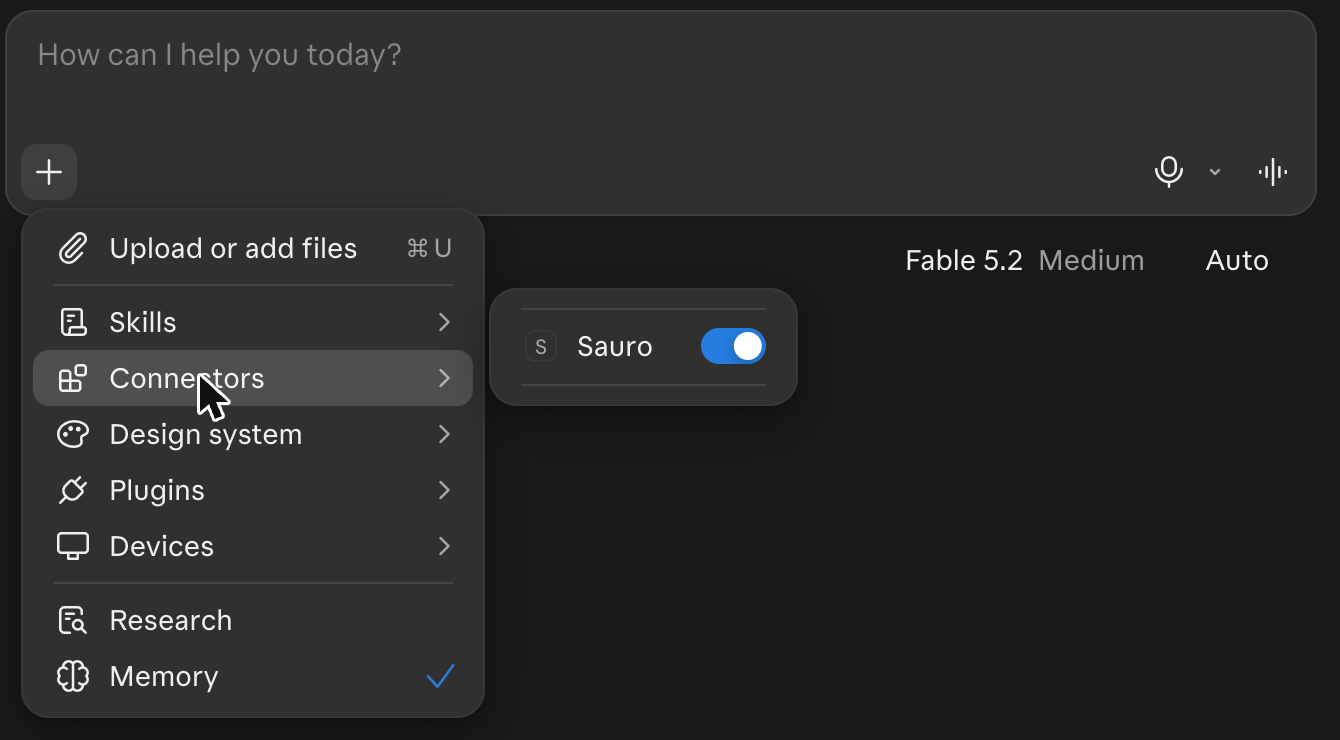
To use it, click + in a chat, open Connectors and make sure Sauro is switched on. Claude remembers that for the next chat. Sauro then shows up in the Claude desktop and phone apps too, since they share your account.
If your company is on Claude Team or Enterprise
An owner goes to Organization settings, then Connectors, clicks Add, picks Custom (choose Web if asked), pastes the address and clicks Add. Everyone else then finds Sauro under Customize, then Connectors, with a Custom label, and clicks Connect to sign in as themselves.
Set up Sauro.
That is a good first thing to say. Sauro walks a new organization through projects, brand, numbers and team one question at a time.
ChatGPT
You add Sauro as a plugin at chatgpt.com in a browser.
- Click Plugins in the sidebar, then Add at the top right.
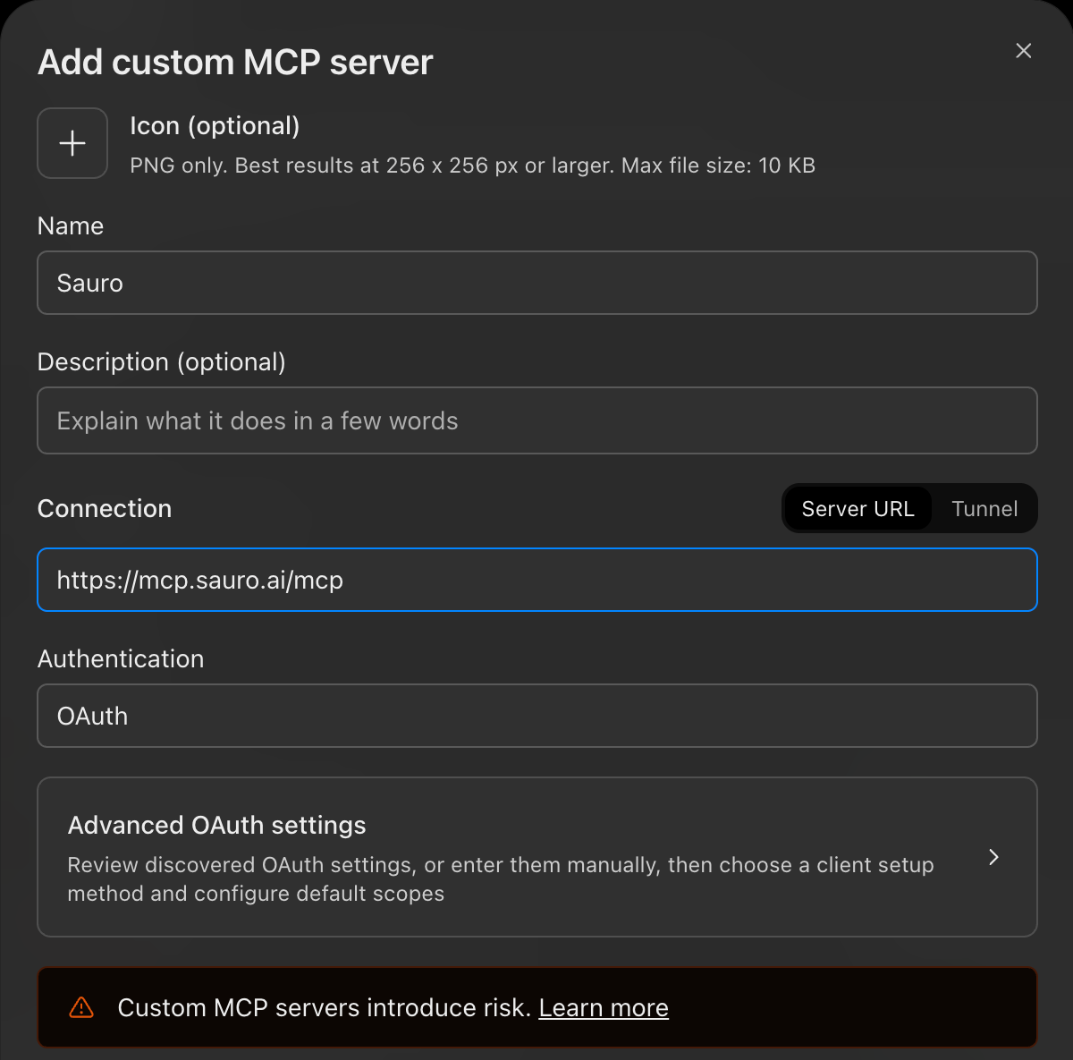
- Choose Add custom MCP server.
- Name it the way your invite says, leave Server URL selected, and paste the address. Leave Authentication on OAuth.
- Tick I understand and want to continue, then create the plugin.
- Sign in with your work email and the six-digit code Sauro emails you.
To use it, type @ in a chat and pick Sauro. ChatGPT may ask you to approve some of Sauro's actions the first time. You can change how often it asks under Settings, then Plugins, then Default permission.
If your company is on ChatGPT Business, Enterprise or Edu
Your workspace admin may need to add or allow Sauro first. If you don't see Add custom MCP server, ask them.
Gemini
The Gemini app can add Sauro as a custom app, but Google only allows it for personal Google accounts in the US, for people 18 and over, with Keep Activity turned on. Gemini Enterprise and work or school Google accounts can't add Sauro yet. If that's you, use Claude, ChatGPT or Grok for now.
- Open gemini.google.com in a browser (not the phone app).
- Click Settings, then Connected Apps. If you don't see it, click Personal Intelligence first.
- Under Custom apps, click Add a custom app.
- Paste Sauro's address and click Next.
- Sign in with your work email and the six-digit code Sauro emails you, then approve.
In a chat, type @ and pick Sauro. Once it's added on the web, it works in the Gemini phone app too. If Sauro connects but never answers, check that Keep Activity is on; Gemini quietly switches custom apps off without it.
Grok
- Go to grok.com/connectors.
- Click New Connector and choose Custom.
- Paste Sauro's address.
- Sign in with your work email and the six-digit code Sauro emails you.
Grok usually reaches for Sauro on its own when you ask about your company. If it reaches for the web instead, say "check Sauro". On Grok Business or Enterprise, a team admin adds the connector first in the xAI console under Grok Business, then Connectors.
How did our numbers move last week? Check Sauro.
Grok Bot
Grok Bot keeps its own list of plugins, separate from Grok chat, so add Sauro here too if you use both.
- Open grok.com/bot and go to Plugins.
- Add a custom server and paste Sauro's address.
- Sign in with your work email and the six-digit code Sauro emails you.
- In a Bot's chat, type @ and pick Sauro.
Each chat and each Routine attaches its own plugins. A Routine that records numbers into Sauro every morning needs Sauro attached to that Routine.
Every weekday at 7, pull yesterday's Search Console clicks and record them in Sauro.
OpenClaw
OpenClaw adds Sauro with one command on the machine where it runs. You can also fill in the same details in OpenClaw's own settings screen.
openclaw mcp set sauro '{"url":"https://mcp.sauro.ai/mcp","transport":"streamable-http","auth":"oauth"}'
openclaw mcp login sauro
The second command prints a sign-in link. Open it, sign in with your work email and the six-digit code, and OpenClaw keeps you signed in. If OpenClaw runs on a server with no browser, open the link on your own computer and finish with the code it shows, using openclaw mcp login sauro --code <code>.
Check that it worked:
openclaw mcp doctor sauro --probeKeep "transport":"streamable-http" in the command. Without it, OpenClaw tries an older connection type that Sauro doesn't use.
Hermes
Hermes reads its servers from ~/.hermes/config.yaml. Add Sauro under mcp_servers:
mcp_servers:
  sauro:
    url: "https://mcp.sauro.ai/mcp"
    auth: oauth
Then sign in from a fresh terminal:
hermes mcp login sauroHermes opens a sign-in page (or prints the link if it can't open a browser). Sign in with your work email and the six-digit code, and Hermes keeps you signed in. In a running Hermes session, type /reload-mcp to pick Sauro up, and hermes mcp test sauro shows what Sauro answered.
Coding agents
Sauro can also be the shared memory behind a coding agent, so it checks what your team decided before it builds and saves what it learns. The quickest way is to let the agent set itself up. Say this to it:
Set up https://sauro.ai/SKILL.md
The agent reads that file, adds Sauro and asks you to sign in. Or add it yourself:
Claude Code. Run this, then type /mcp in Claude Code, pick Sauro and choose Authenticate.
claude mcp add --transport http --scope user sauro https://mcp.sauro.ai/mcpCursor. Add Sauro to ~/.cursor/mcp.json, then open Cursor Settings, then MCP, and click the login button next to Sauro.
{
  "mcpServers": {
    "sauro": { "url": "https://mcp.sauro.ai/mcp" }
  }
}
Codex. Run these two commands. The second opens the sign-in page.
codex mcp add sauro --url https://mcp.sauro.ai/mcp
codex mcp login sauro
Either way, you sign in with your work email and the six-digit code in your browser. There is no key to copy or paste.
Working with more than one organization
If you work with several teams on Sauro, such as your own company and two clients, you still add Sauro only once. When an admin adds you to another organization, your Sauro connector reaches it too. There's nothing new to set up.
Each chat works in one organization. Say which one when you start, such as "in Harbor Coffee, how did last week go?", and your assistant uses that one for the rest of the chat. If you don't say, Sauro reads from your default organization and says so, and it asks which organization before it saves anything. Every answer says where it came from, such as "Harbor Coffee" or "Harbor Coffee / spring menu", and nothing is ever copied from one organization into another.
If you're on only one organization, you're never asked.
Want a connector that can only ever reach one team? Each organization also has its own address, https://mcp.sauro.ai/ followed by its short name, and a connector added with it reaches that organization and nothing else.
For when to use a project and when a separate organization, see how to use Sauro when you work with more than one team.
What to say
Once Sauro is connected, try these in any of the assistants above. Start with the first one: Sauro coach asks a few questions about your work, the tools you use and the agents you run, then helps you work out where Sauro fits and does the first thing with you.
Sauro: get started.
Set up Sauro.
What can Sauro do, and what does it know about us?
Good morning. What's moving?
Next, see things you can do with Sauro, with screenshots.